 Front Desk
Welcome
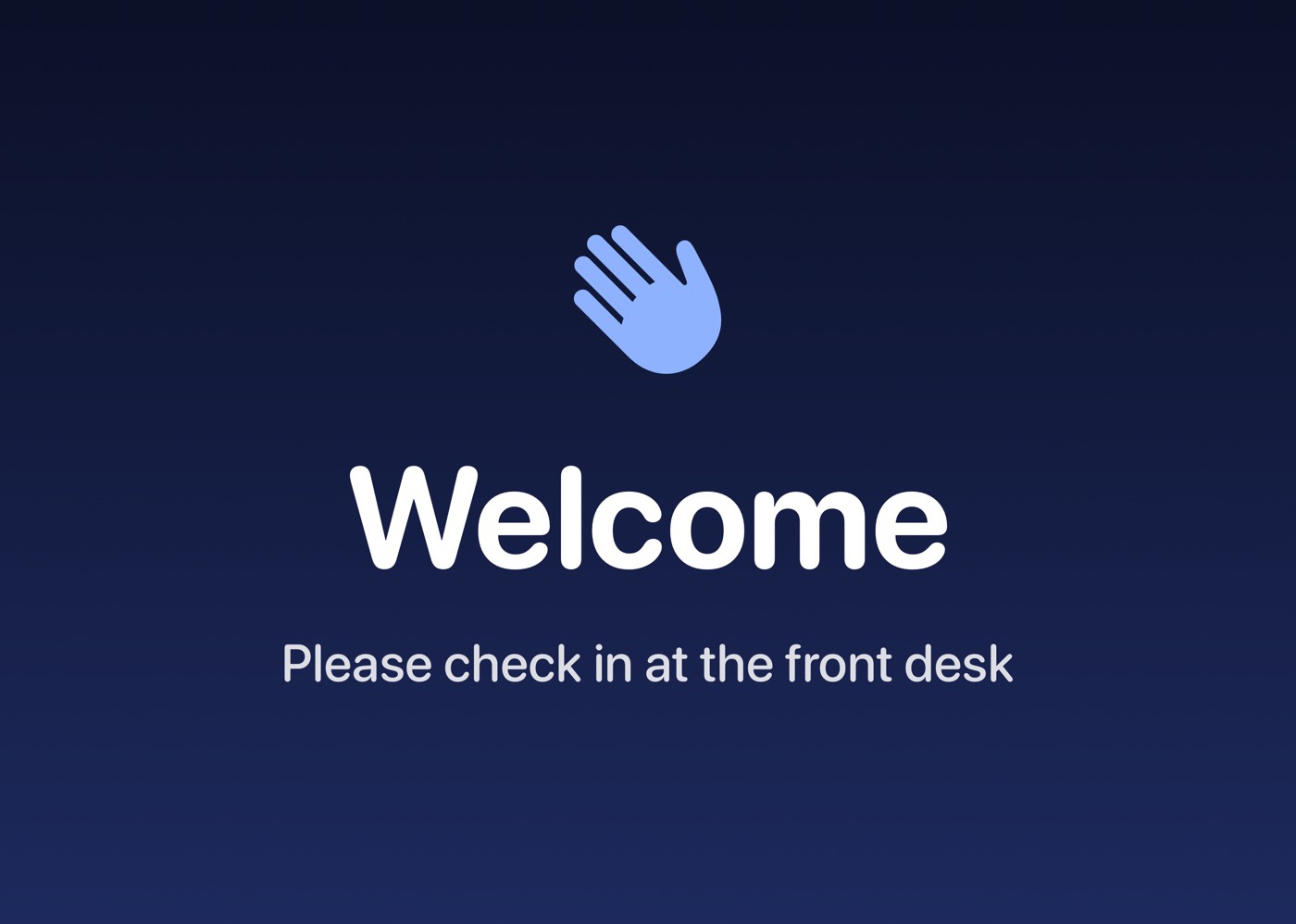
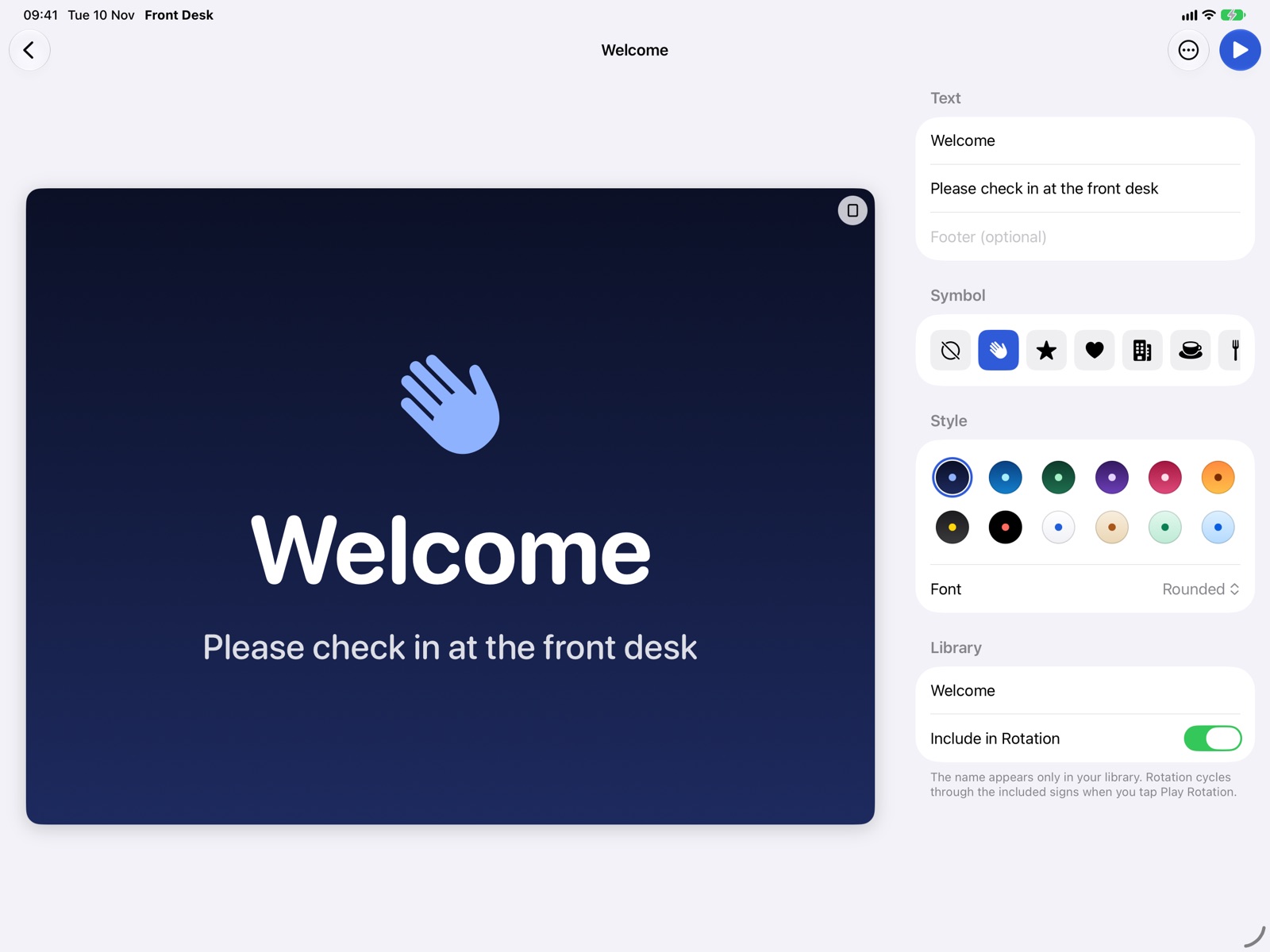
Greet visitors with a headline and a short note.
For iPhone and iPad
Welcome visitors, post your hours, call the next number and share guest Wi‑Fi. Pick a template, type your details and show it full screen.
Get it on the App Store One purchase. No subscription, no ads, no account.
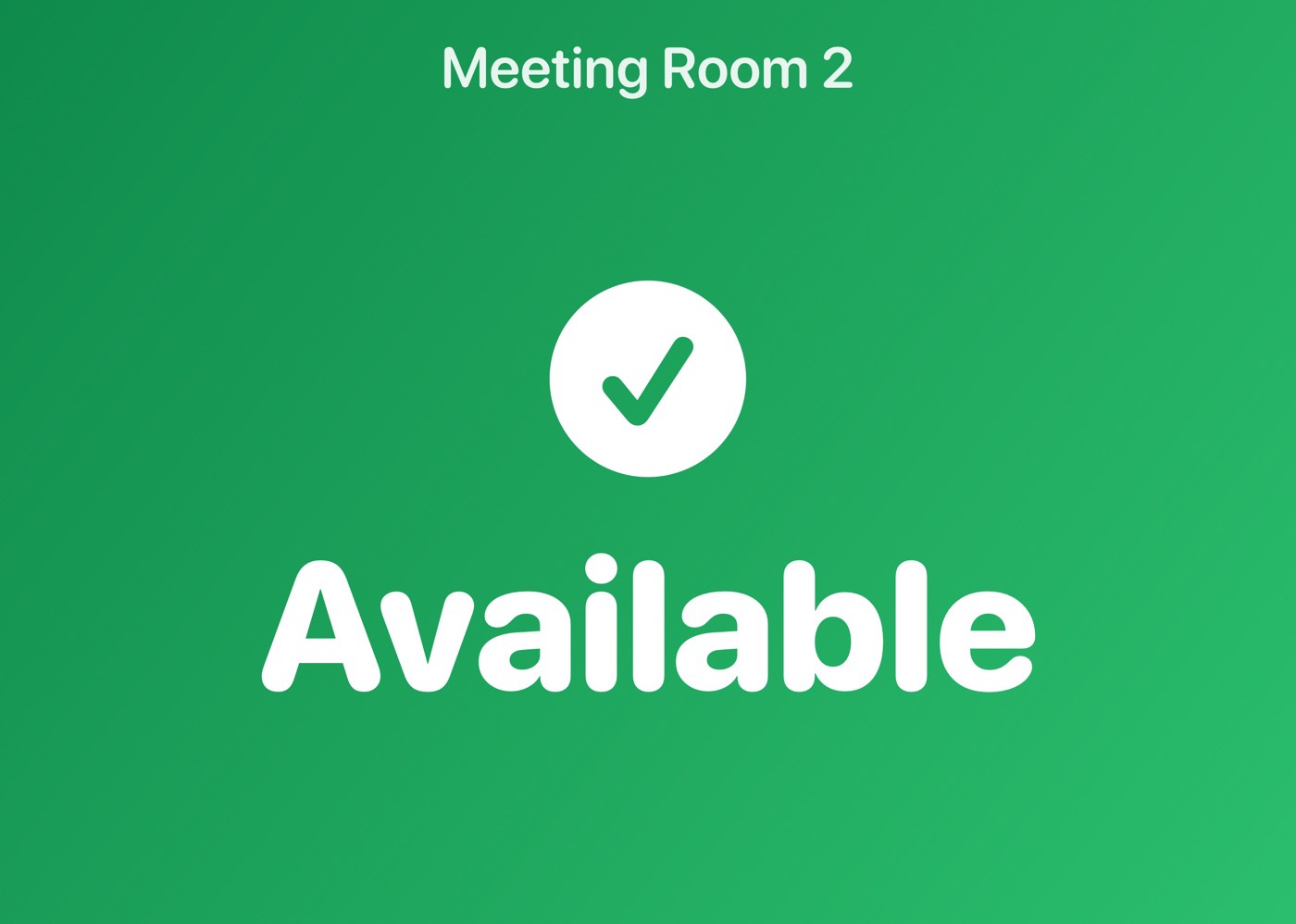
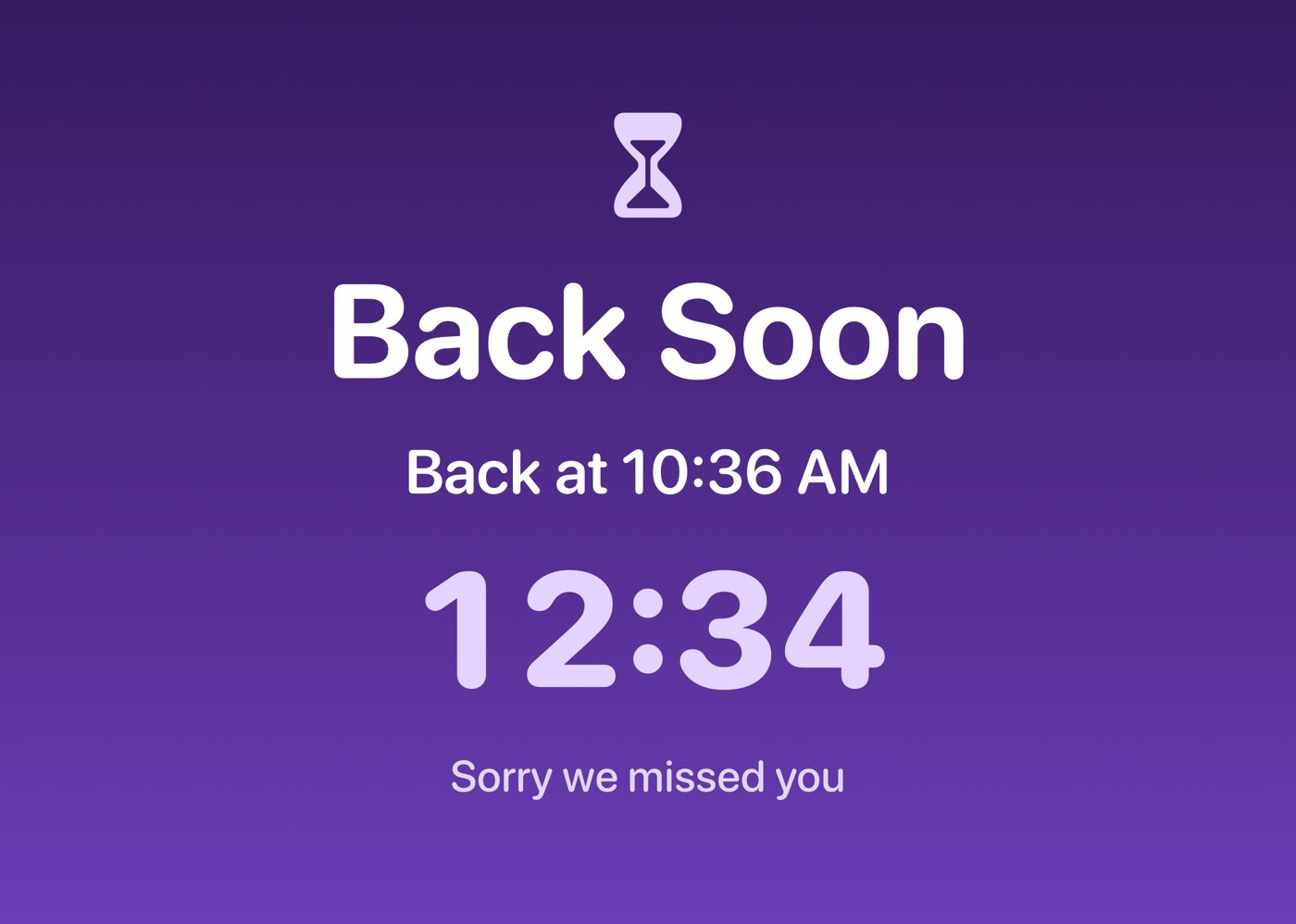
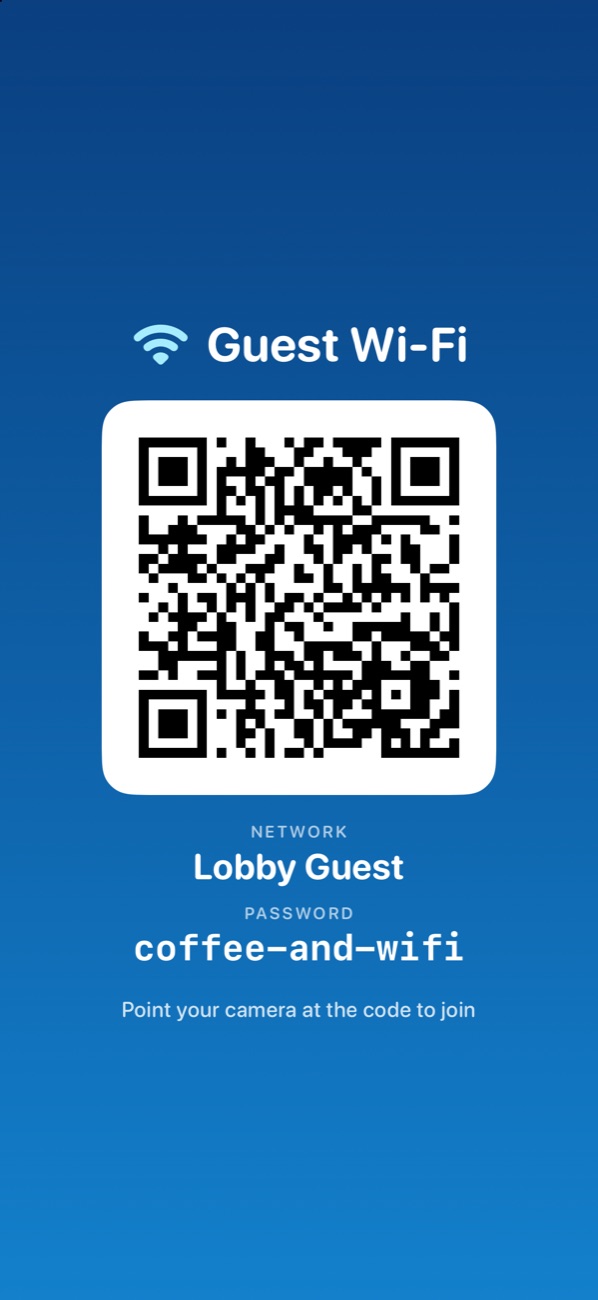
Each one fills the screen, in portrait or landscape, on any iPhone or iPad.
Greet visitors with a headline and a short note.
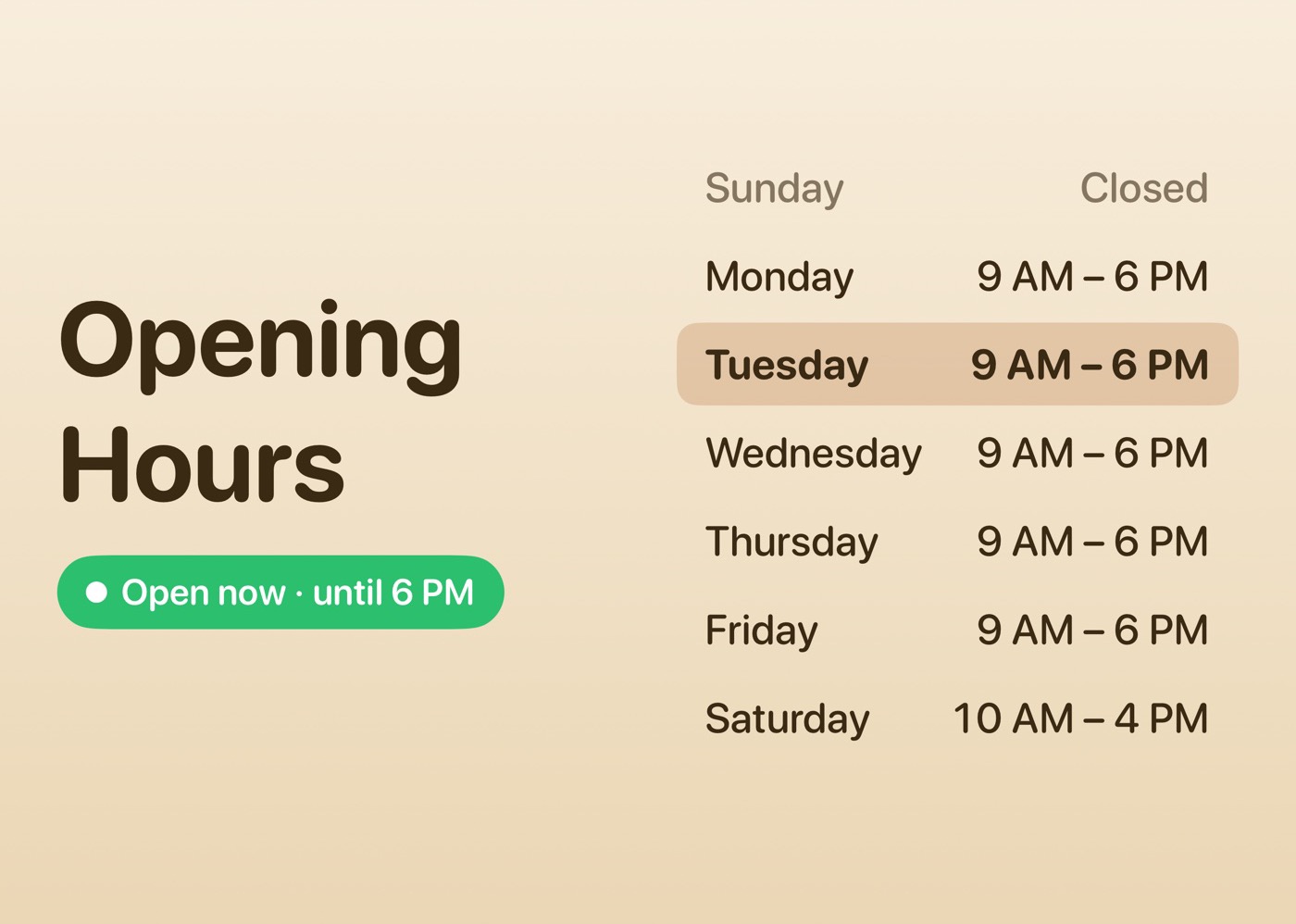
Your week at a glance. The badge switches between Open now and Closed by itself.
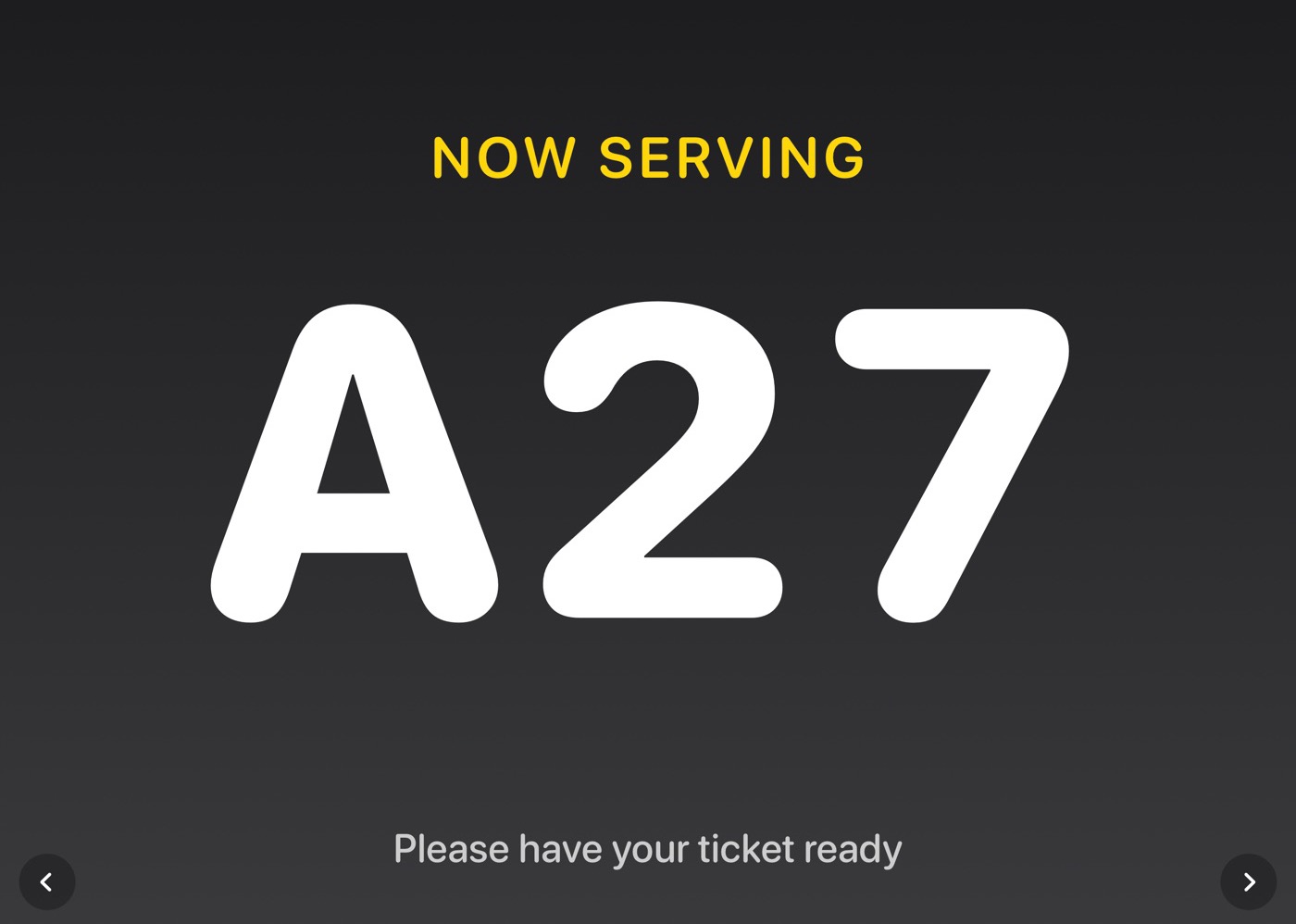
A ticket number you advance with a tap, with a chime and a spoken announcement.
Any two states you flip with a tap: Available and In Use, Free and Busy, On Air and Off Air.
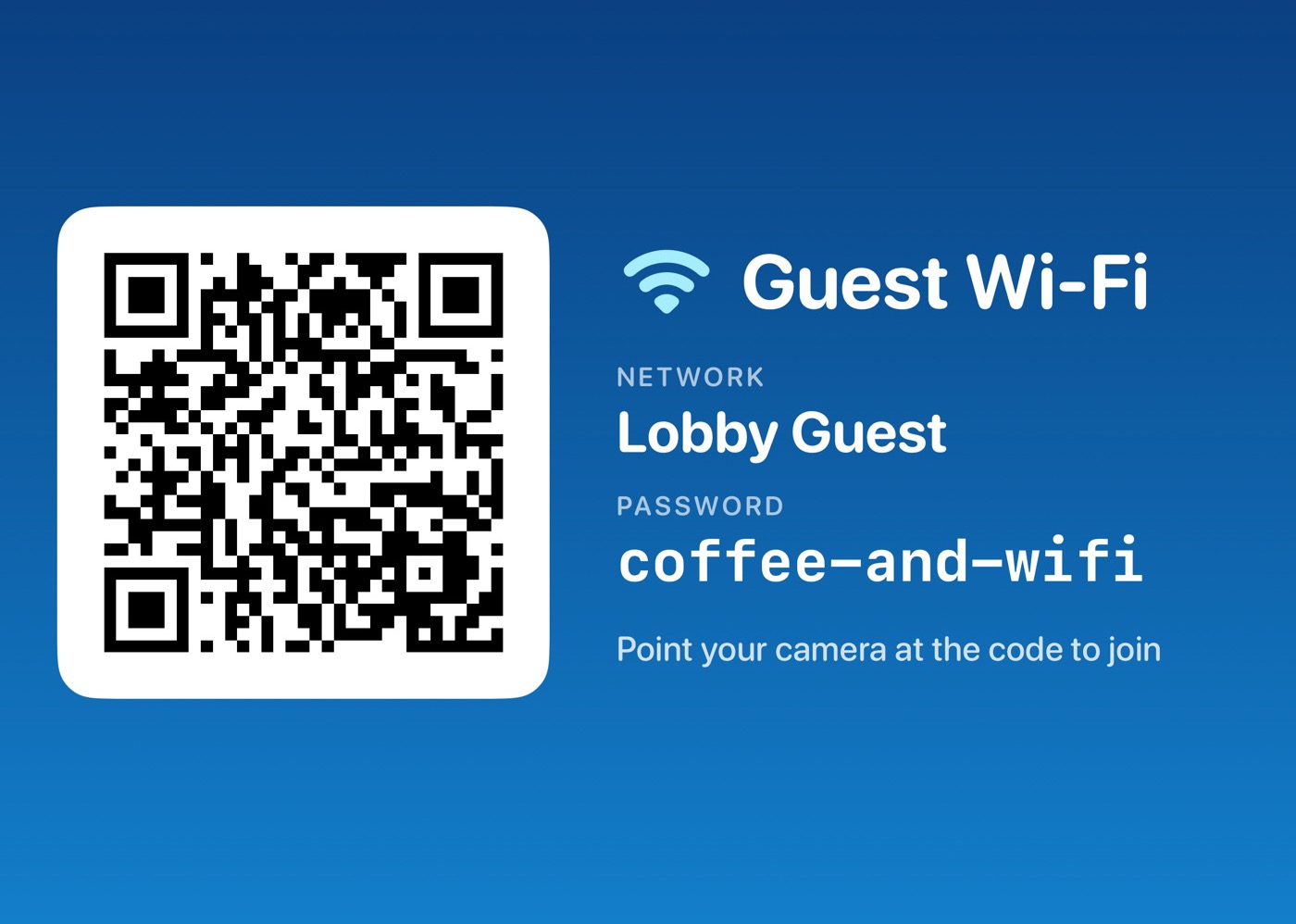
A QR code guests scan with their camera to join. No more spelling out the password.
A return time with a live countdown.
Big text that fills the screen, still or scrolling.
Prop the device on the counter and forget about it.
The screen stays on for as long as a sign is showing.
Cycle through several signs on a timer, like a slideshow.
Hold to Show Controls keeps a passing tap from closing your sign.
Call the next number with the arrow keys, from behind the counter.
Share any sign as an image to print, post or send.
No data is collected. Your signs and Wi‑Fi details stay on your device.
Edit beside a live preview. Choose from twelve color themes and four typefaces, and see the sign change as you type.
Front Desk supports managed app configuration. Send signs and settings from your device management (MDM) server, open straight into full screen on kiosk devices, and lock editing on shared ones.
The configuration reference has every key, and a builder that writes the configuration for you.
Open the configuration builder<key>autoStart</key>
<true/>
<key>signs</key>
<array>
<dict>
<key>type</key>
<string>welcome</string>
<key>title</key>
<string>Welcome to Acme</string>
</dict>
</array>Answers to the questions that come up most.
Tap the sign to bring up its controls, then tap Close. If a tap does something else on your sign, or if Hold to Show Controls is on, touch and hold the sign for a second instead.
In Front Desk's settings, turn on Hold to Show Controls. To lock the device to the app completely, use Guided Access: open the Settings app, go to Accessibility, then Guided Access, turn it on and set a passcode. Show your sign, triple-click the side button and tap Start.
The network name and password have to match your router exactly, including capital letters and spaces. Check the security setting too: most networks use WPA. If your network doesn't broadcast its name, turn on Hidden Network.
Connect a Bluetooth keyboard. The right arrow, space bar and Return call the next number, and the left arrow goes back one.
Yes. Turn on Include in Rotation for each sign you want, then tap Play Rotation at the top of the main screen. Choose how long each sign stays up in settings.
Yes. Open the sign, tap the share button and choose Print, or save the image to print it elsewhere.
Yes. Front Desk supports managed app configuration, so a device management (MDM) server can supply signs and settings. Administrators will find the keys and a builder in the configuration reference.
Still stuck? Email maximuz.apps@gmail.com and we'll help.